
The fastest way to get paid late is to send a confusing invoice. Missing terms, no invoice number, a total that doesn’t obviously match the line items — every one of those gives a client a reason to set your invoice aside and deal with it later.
This free Excel invoice template fixes that. It has everything a client needs to pay you without asking a follow-up question: clear line items, an automatic subtotal and tax calculation, and a Total Due that’s impossible to miss.
What Belongs on Every Invoice
A professional invoice needs a few non-negotiables: a unique invoice number (for your own records and theirs), the invoice date and due date, your business details, the client’s billing details, an itemized list of what you’re charging for, and a clearly stated total.
Beyond that, payment terms (Net 15, Net 30, due on receipt) and how you accept payment should be visible without the client having to dig for them. The clearer the invoice, the faster you get paid.
How the Total Is Calculated
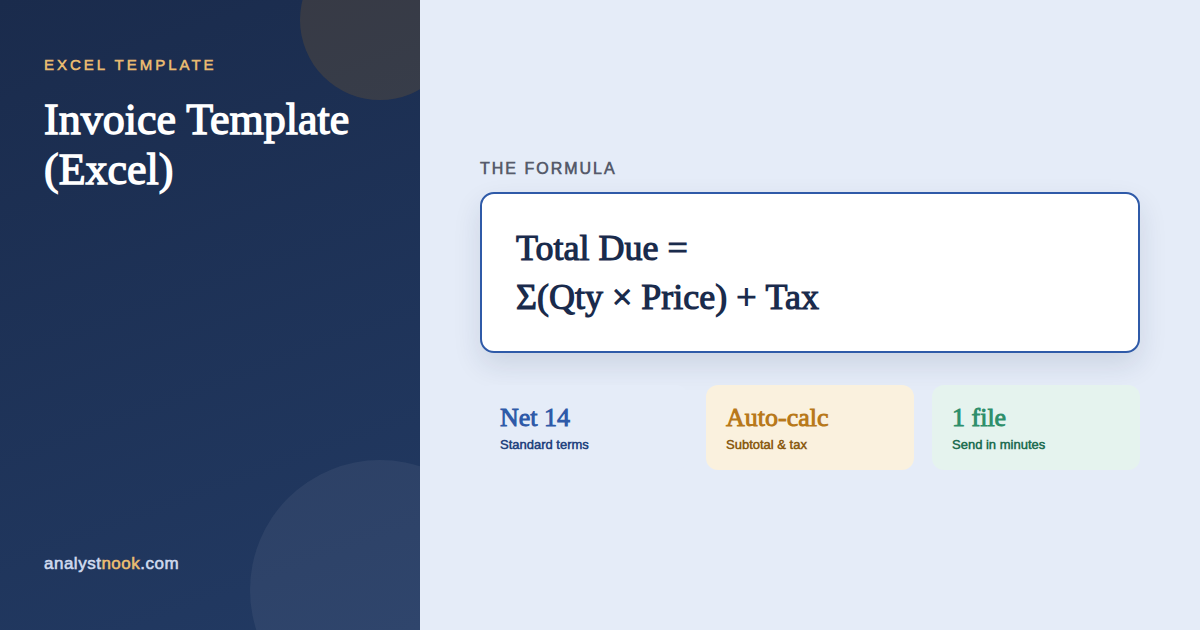
Every line item’s amount is quantity multiplied by unit price. Add all the line amounts together for your subtotal, apply your tax rate, and the total due is the subtotal plus tax — all handled automatically in the template.
How to Fill Out the Invoice
- Replace the placeholder business info at the top with your own name, address, and contact details.
- Enter your invoice number, invoice date, and due date.
- Add the client’s billing name and details under “Bill To.”
- Enter each line item’s description, quantity, and unit price — the Amount column calculates itself.
- Set your tax rate if applicable; leave it at 0% if you don’t charge sales tax on services.
A Worked Example
Say you billed 8 hours of consulting at $75/hour, a $450 monthly reporting package, and 3 hours of QuickBooks training at $100/hour. That’s $600 + $450 + $300 = $1,350 subtotal. With no sales tax, the Total Due is $1,350 — and the template calculates every step of that automatically as you type.
Common Mistakes to Avoid
After looking at a lot of small business invoicing setups, the same handful of issues keep showing up:
- No invoice number. Without one, you can’t easily track what’s been paid, and neither can your client’s accounts payable team.
- Vague line items. “Services rendered” invites questions. Be specific about what was delivered and when.
- Unclear payment terms. State the due date and accepted payment methods directly on the invoice, not in a separate email.
- Forgetting to number sequentially. Skipping or reusing invoice numbers creates bookkeeping headaches and looks unprofessional to a careful client.
- Not keeping a copy. Save every invoice you send — you’ll need the full history for taxes and for resolving any payment disputes.
How to Use the Excel Template
- Open the Invoice tab and fill in your business and client details in the yellow cells.
- Enter your line items — description, quantity, and price. Amount and totals calculate automatically.
- Set your tax rate, or leave it at 0% if not applicable.
- Save a copy with a unique filename (matching your invoice number) before sending.
Download the Free Excel Invoice Template
Download the free Invoice Template below — no email signup required. It’s a ready-to-send Excel file with automatic subtotal, tax, and total calculations built in.
Want new templates emailed to you?
No spam. Unsubscribe anytime. Downloads never require this.
Need this template customized to your business — a different setup, extra categories, or your own formulas built in? Email me at sharafudin1999@gmail.com or drop a comment below and I’ll help you tweak it.
Once invoices go out, the next step is tracking what’s actually been collected — our Accounts Receivable Aging Report template shows you exactly which invoices are overdue, and our Cash Flow Forecast Template helps you plan around when that cash actually lands.
For a closer look at what makes an invoice complete before you rely on this excel invoice template, see QuickBooks‘s guide to invoice basics.
Frequently Asked Questions
What should I name my invoice files?
Use a consistent pattern that includes the invoice number and client name, like INV-1001-Acme-Co.xlsx. This makes them easy to search later and keeps your invoice numbers from accidentally repeating.
Do I need to charge sales tax on my invoices?
It depends on your state or country and whether you sell goods or services — tax rules vary widely. Check with a local accountant or your state’s department of revenue; the template lets you set any tax rate, including 0%.
What payment terms should I use?
Net 15 or Net 30 are the most common for B2B invoicing. Shorter terms (due on receipt, Net 7) can help cash flow but may be harder for larger clients to accommodate given their own payment cycles.
Can I use this template for recurring clients?
Yes — save a copy as your base template and just update the invoice number, date, and line items each billing cycle. The formulas stay intact as long as you don’t delete rows.
How do I follow up on an unpaid invoice?
Send a polite reminder a few days after the due date, referencing the invoice number and amount. If it stays unpaid, escalate to a firmer follow-up at 30 and 60 days — our Accounts Receivable Aging Report template helps you track exactly how overdue each invoice is.
